

🎧 Listen to this article: English
🌍 Read this in your language: हिंदी · தமிழ் · తెలుగు · ಕನ್ನಡ · മലയാളം · ଓଡ଼ିଆ · 日本語 · 中文
You open one coding assistant to understand a bug, another to fix it, and a third to explain the change. Soon, remembering which window needs your attention becomes a job of its own.
As of November 21, 2026, Herdr offers a way to organize those terminal sessions. Add Wispr Flow for dictating prompts, and you have a practical workflow to consider when juggling Claude, Codex and Gemini sessions.
This article walks through a fictional example. It describes a setup you can try, rather than a combination I have tested personally. The images are simplified illustrations, not captured sessions; actual layouts vary.
The Simplest Use Case: Speak the Bug You See
Imagine you are testing a signup page. You type hello into the email field and see “Something went wrong.” You know what happened, but describing it by typing interrupts your testing.
This is a useful moment for Wispr Flow. Here is a sample of what you could say:
I'm testing the signup page. When I enter hello as the email address, it says Something went wrong. Please check the email validation and suggest a clearer message. Don't change any files yet.
The resulting text is a draft to review in your editor. After checking it, paste it into Claude's planning pane. You have described the problem in everyday language, without dictating code or a shell command.
Start with one assistant. If you accept its plan, pass that plan to Codex for the fix. Gemini can help with wording if needed. The three-session example below shows those optional handoffs.
What Herdr Does
Herdr is an open-source terminal workspace manager. A pane is simply a section of a terminal window where a program runs. Several panes let you keep multiple sessions visible together.
Herdr runs existing coding tools and shows agent activity, helping you find the session that needs attention. Herdr's repository describes the project and its features.
Where Wispr Flow Fits
Wispr Flow turns speech into edited text where your cursor is, including text entered into editors and terminal applications. Its official site lists Mac, Windows, iPhone and Android; it does not list native Linux support. Wispr Flow's product page explains its dictation features.
For this example, assume a compatible Windows or macOS environment where your chosen terminal tools already work.
The workflow here is dictation into an editor, review, then copy-paste. It does not require a special integration between the two products.
A Simple Example: Fix a Signup Form
Meet Rohit, a fictional developer working on a small website.
The signup form displays “Something went wrong” when an email address is invalid. Rohit wants a useful error message without changing the signup service.
He chooses three roles:
- Claude reads the relevant code and proposes a plan.
- Codex implements the approved change.
- Gemini suggests wording and review questions from a sanitized description.
These roles are choices for this example. Any suitable assistant could fill them. Only one assistant will edit the project.
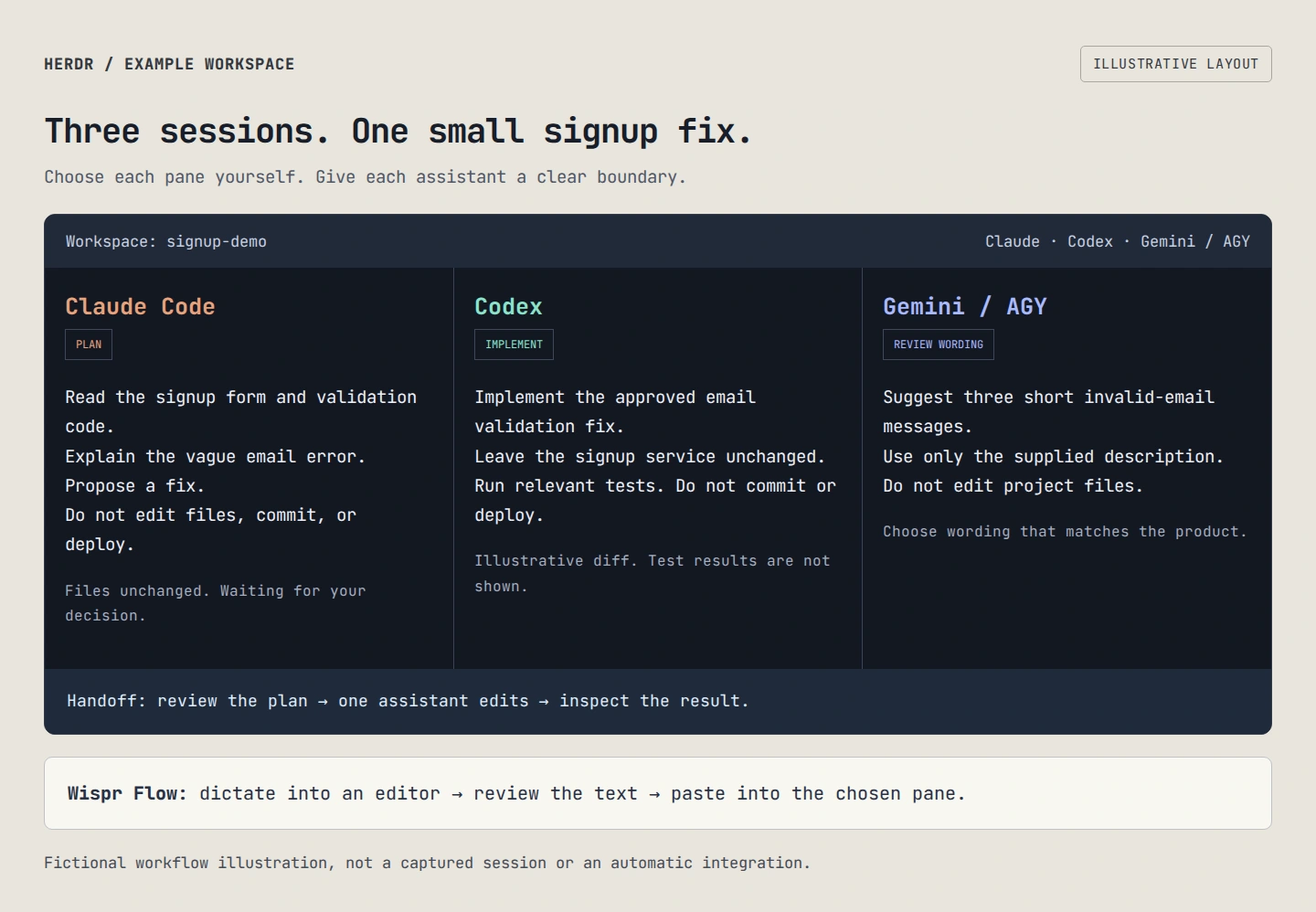
Example workspace: three sessions with separate responsibilities.
Step 1: Open a Workspace
With Herdr already installed, Rohit opens a terminal in his project directory and starts it:
herdrHe uses the pane context menu to split the workspace into sections. The default keyboard alternative for splitting right is to press Ctrl+B, release, then press V. These controls come from the Herdr quick start.
He keeps a small note beside the editor: “Claude: plan. Codex: edit. Gemini: wording.”
Step 2: Start the Existing Assistants
Assuming each CLI is installed and signed in, Rohit starts Claude in one pane:
claudeHe starts Codex in a second pane:
codexIn the third, he starts Gemini CLI:
geminiThe browser version of Gemini is a separate interface. This example uses its terminal CLI.
Herdr documents support for Claude Code and Codex. It lists Gemini CLI as “state only, less tested,” so Rohit checks that pane himself instead of assuming every status indicator is equally reliable. See the agent support documentation.
Step 3: Dictate a Clear Planning Request
Rohit opens his text editor, activates Wispr Flow using his configured controls, and speaks:
Read the signup form and its validation code. Explain why an invalid email shows a vague error. Propose the smallest fix. Do not edit files, commit, or deploy.
He checks the resulting text, then pastes it into Claude's input and submits it.
This is the more specific version of the spoken bug report above. Rohit checks that the proposed plan matches the code before approving it.
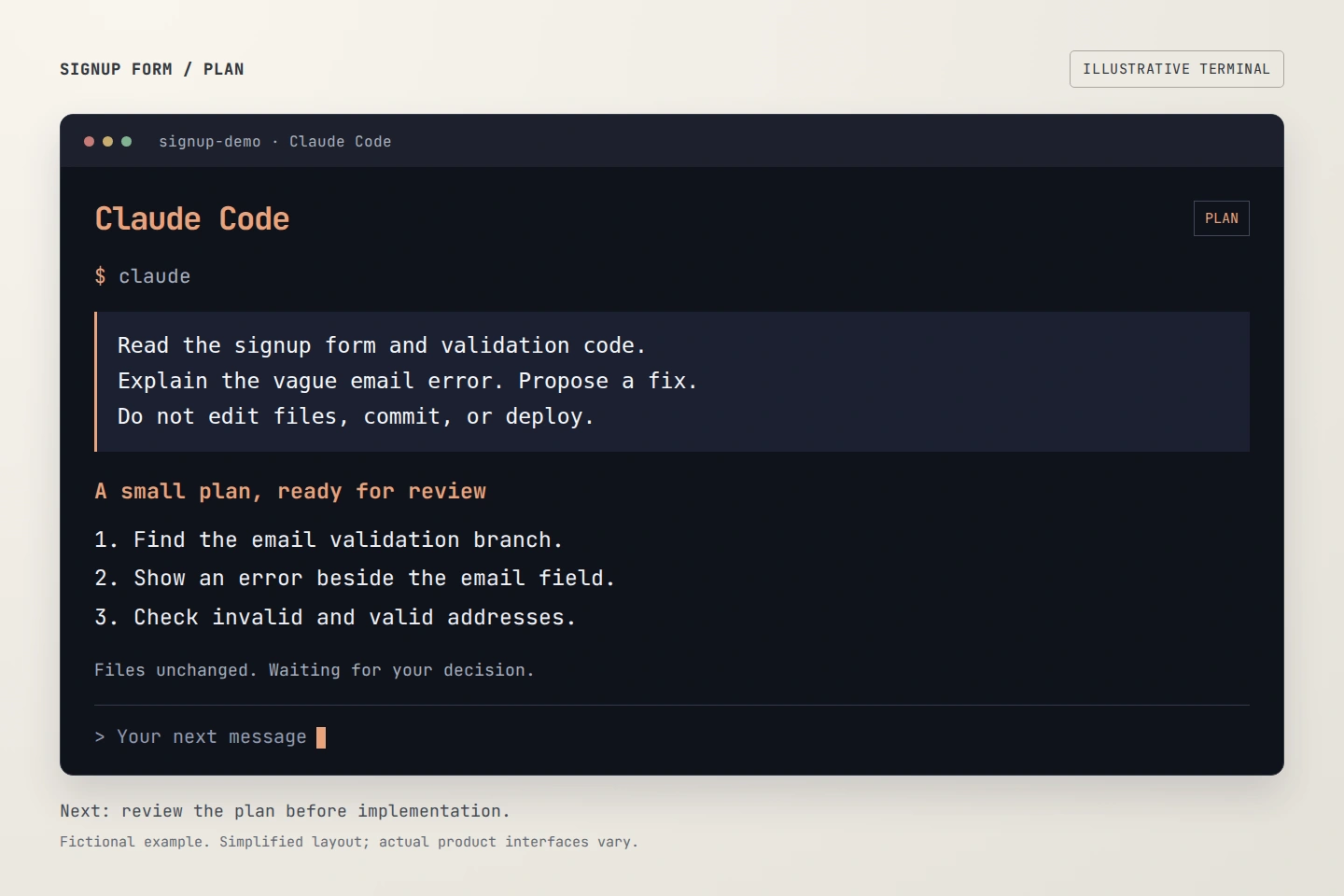
Claude Code example: ask for a plan before allowing edits.
Step 4: Give One Assistant the Editing Task
Rohit dictates another prompt into his editor:
Implement the approved email validation fix in the signup form. Leave the signup service unchanged. Run the relevant validation tests and show the diff. Do not commit or deploy.
He pastes the reviewed plan underneath that prompt before sending it to Codex. He includes the relevant filenames from his own project.
This handoff matters. A separate assistant does not automatically know what another session discussed.
Codex is the sole editor. The other sessions provide advice.
Herdr's panes do not themselves create file locks or prevent conflicting edits. The task boundaries are Rohit's responsibility.
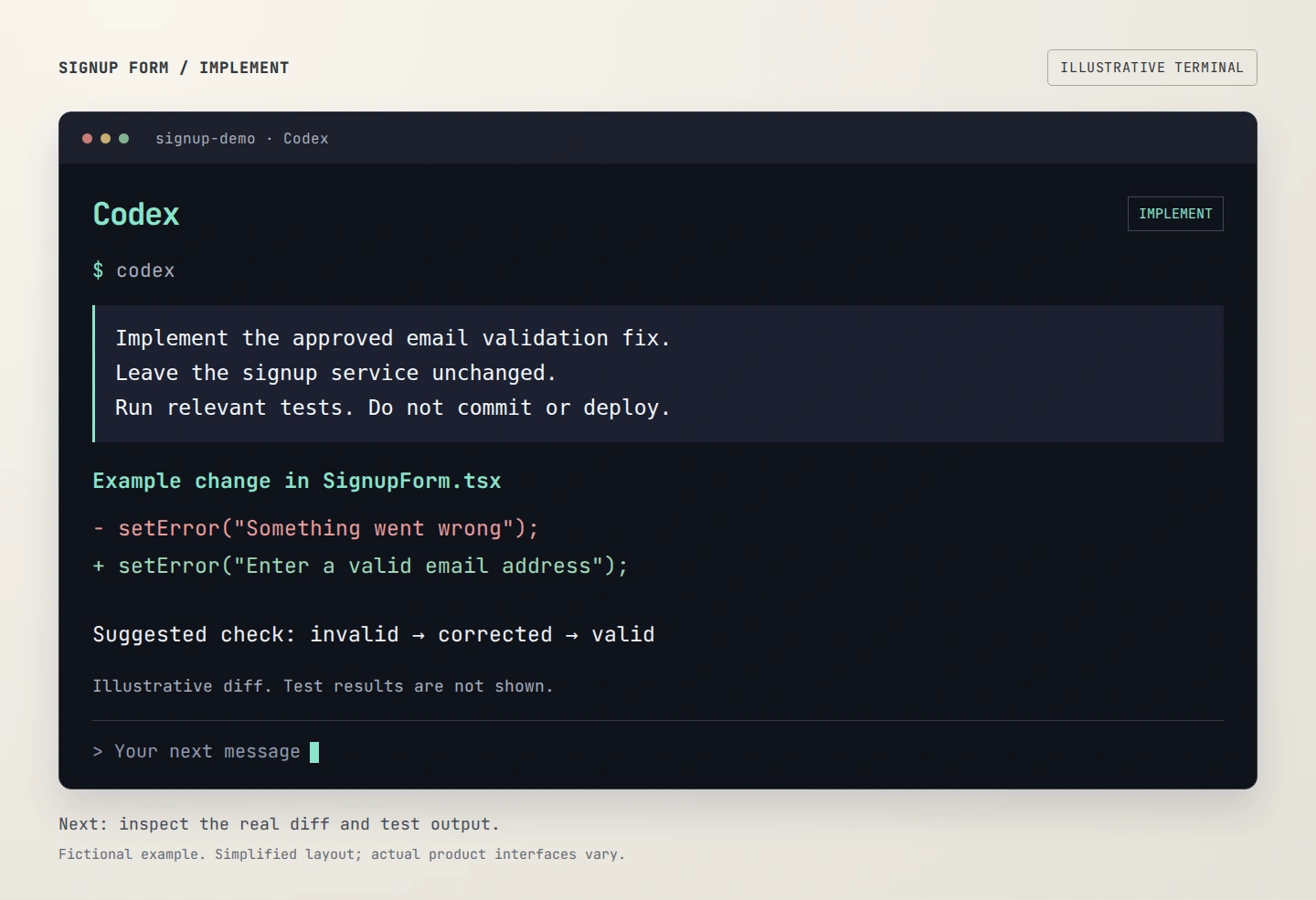
Codex example: one assistant edits; review the actual diff and tests.
Step 5: Ask Gemini for Clearer Wording
While Codex works, Rohit prepares a short description with no personal data, credentials or private logs. He dictates:
A signup form needs an error for an invalid email address. Suggest three short, polite messages and five checks a reviewer should perform. Use only this description. Do not edit project files.
He reviews the text and sends it to Gemini.
Rohit can compare the suggested messages himself. For example, “Enter a valid email address” tells the user what to correct. He decides whether the wording matches the product's tone and gives the chosen text to the implementing assistant if needed.
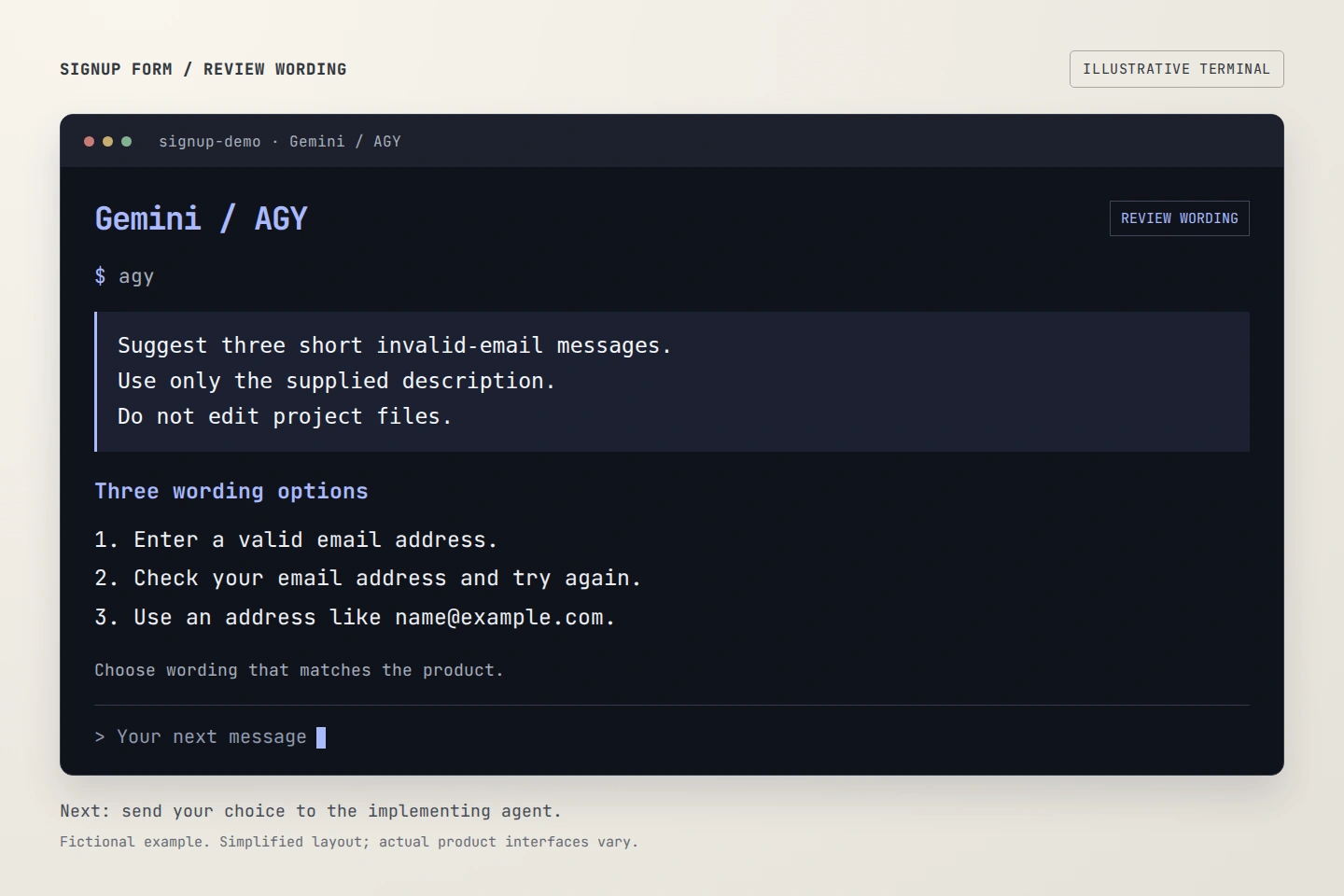
Gemini / AGY example: compare wording without changing files. The illustration uses an installed Antigravity CLI launcher named agy; use gemini for Gemini CLI.
Step 6: Review the Result
Rohit reads the diff and test output. He checks an invalid address, a valid address, and whether the error clears after correction. He also checks keyboard access and whether the message is understandable.
He looks back at the dictated prompts. A missing “not” could reverse an instruction, so reading before submission remains useful even when dictation sounds accurate.
He approves any commit or deployment separately. A status label is a reason to inspect a session, not evidence that the change is correct.
Can You Leave and Come Back?
Herdr's background server can keep terminal processes running when its client detaches. That differs from restarting the machine: the original processes do not survive a reboot, although saved layouts and supported sessions may be restored. The repository explains this distinction.
To detach with the default shortcut, press Ctrl+B, release, then press Q. Run herdr again to reattach, as described in the quick start.
Conclusion
Herdr can make several coding sessions easier to follow. Wispr Flow adds a way to speak the instructions you would otherwise type. Start with one small task, explicit roles and a final human review.
Merits
- Keeps related terminal sessions together.
- Makes each assistant's task easier to track.
- Offers dictation for people who prefer speaking prompts.
- Supports a workflow with clear handoffs and review points.
Demerits
- Adds tools to install, learn and maintain.
- Does not increase model quotas or guarantee correct code.
- Dictated technical terms still need checking.
- May add little value if one terminal already meets your needs.
Caution
This article is educational and uses a fictional example. Replace example filenames, task descriptions and other placeholders with values appropriate to your project. Verify current product claims and compatibility before relying on them, review dictated text before sending, and keep sensitive information out of prompts unless its use is authorized.
Frequently asked questions
- What is Herdr used for? — It organizes terminal sessions, including coding assistants, in a shared workspace.
- Can I use Claude, Codex and Gemini together? — You can run their installed CLIs in separate panes. Check current agent support and give each session a clear task.
- Does Wispr Flow control the agents? — In this example, it supplies dictated text. You choose the destination, review the prompt and submit it.
- Is a special Herdr and Wispr Flow integration required? — This proposed workflow uses an editor and copy-paste, rather than a dedicated integration.
- Will all assistants remember the same conversation? — Do not assume so. Pass the relevant plan and context explicitly between sessions.
- Can every assistant edit the same files? — That can create conflicts. This example assigns editing to one assistant while the others provide advice.
- Should I use this for every coding task? — Try it when managing multiple sessions causes friction. A simple task may need only one assistant.
Tags
#Herdr #WisprFlow #ClaudeCode #Codex #GeminiCLI #CodingAgents #DeveloperTools #VoiceToText #Productivity
Prompt-Injection Defense Checklist
The controls that actually reduce the blast radius when your app feeds untrusted text to an LLM. Enter your email — you'll get the PDF instantly, plus new posts on AI, security & Linux.
Free. No spam — unsubscribe in one click.
Responses
Sign in to leave a response.