
🎧 Listen to this article: हिंदी · English · தமிழ் · తెలుగు · ಕನ್ನಡ · മലയാളം · ଓଡ଼ିଆ · 日本語 · 中文
🌍 Read this in your language: हिंदी · தமிழ் · తెలుగు · ಕನ್ನಡ · മലയാളം · ଓଡ଼ିଆ · 日本語 · 中文
A practical field guide to understanding, diagnosing, and reducing Microsoft Teams memory and CPU usage on modern Windows machines.
A quick note on the date, and why mid-2026 is the right moment to revisit this
As of today, Saturday, 30 May 2026, this topic is more relevant than it has been at any point since the client was rewritten. Here is the reason.
In late January 2026, Microsoft began rolling out a meaningful change to the Teams desktop client on Windows: it split the calling and meeting stack out of the main application process into a separate background process. By February 2026, that rollout reached most commercial and consumer tenants. So if you open Task Manager today and notice two Teams processes instead of one, that is not a bug and it is not malware. It is the architecture you are now running on.
That makes right now the ideal time to re-measure your machine, understand what the numbers mean, and apply the fixes that still work, because the baseline has shifted under everyone's feet during the first quarter of 2026.
The scenario
To keep this grounded without exposing anyone's real environment, imagine a fictional engineer named Jordan at a fictional company called NimbusWorks.
Jordan works on a developer workstation we will call DEV-BOX-07, an i5-class laptop with 16 GB of RAM, signed in as [email protected]. Jordan is not in a meeting. Teams is just sitting in the background. And yet Task Manager reports roughly 4.2 GB of memory across the Teams process tree, with CPU bouncing between 5 and 10 percent.
Two years ago, on the same hardware, Teams never behaved like this, not even while screen sharing. Jordan is not imagining it, and Jordan is not alone. This is one of the most widely reported desktop software complaints of the last two years, and Microsoft itself has now publicly acknowledged the idle-memory problem.
Note: Jordan, NimbusWorks, DEV-BOX-07, and
nimbusworks.exampleare illustrative placeholders. Replace them with your own equivalents. No real usernames, passwords, hostnames, IP addresses, secrets, or domains are used anywhere in this article. Where a network address is genuinely needed for an example, this article uses the reserved documentation domainexampleand the reserved documentation IP range198.51.100.0/24, both of which exist precisely so that no real system is ever named.
Why Teams got so hungry: the architecture story
The short version is that the application you are running today is not the application you were running three years ago, even though the icon looks similar.
The rewrite. The "new" Teams reached general availability in October 2023, and the older "classic" client was retired through 2024. Your "about two years ago" memory lines up almost exactly with that transition. The new client was rebuilt on WebView2, Microsoft's embedded Edge engine, replacing the older Electron bundle. Ironically, the new client was marketed as being roughly twice as fast and using about half the memory. Many people experienced the opposite in real-world, all-day usage.
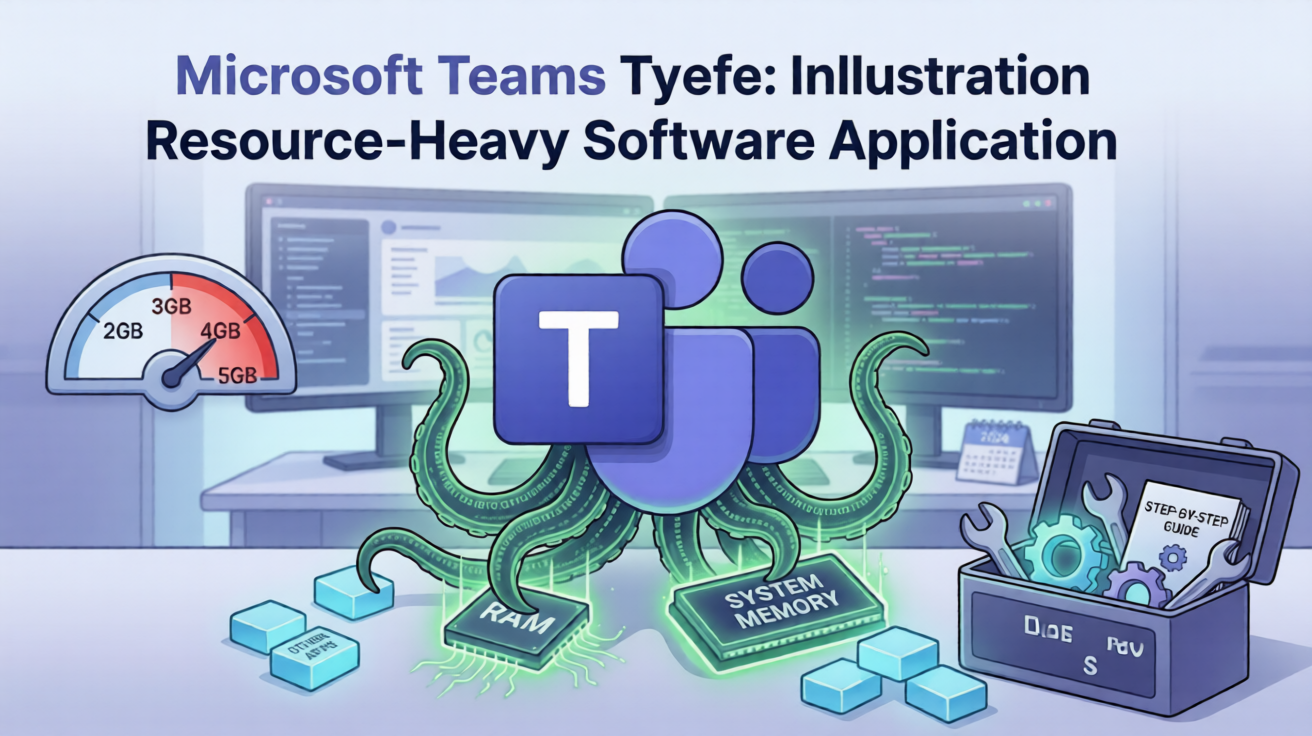
The multi-process model. WebView2 inherits Chromium's design, which spreads work across many separate processes: a main process, a GPU process, an audio service, and a renderer process for roughly each window, tab, or pop-out chat you have open. Task Manager sums all of them, so the eye-watering total you see is the aggregate of a dozen or more child processes, not one single bloated program.
Aggressive caching. Teams treats free memory as something to use. It keeps chat history, images, presence data, and rendering structures resident so the interface feels instant. By design, it is supposed to release that memory when other applications create pressure. So part of your 4 GB is borrowed rather than strictly required, and it should shrink when the system actually needs the RAM elsewhere.
Feature creep. Over the last two years the client absorbed AI assistance hooks, collaborative components, richer background synchronization, and deeper Microsoft 365 integration. Each addition adds resident weight even when you are doing nothing.
Memory leaks. Both the old and new clients have a long, documented pattern of usage that climbs the longer the app stays open. If you, like most people, leave Teams running for days, this is often the real reason a healthy 400 MB idle figure balloons into multiple gigabytes.
Web is not automatically lighter. The browser version runs on the same web stack, so it is heavy too. It is sometimes more convenient only because a browser tab is trivially easy to close and restart.
What Microsoft changed in early 2026
Microsoft acknowledged the idle-memory and call-sluggishness problem in its admin channels in late 2025 and shipped its response in early 2026: the calling and meeting media stack now runs in its own dedicated child process, separate from the primary client process.
The honest caveat, which independent testers were quick to point out, is that this is a surgical optimization rather than a cure. It isolates the heaviest real-time workload so a stuck call no longer drags the whole client down, and it can improve startup and call resilience. But it does not remove the underlying WebView2 and Chromium memory baseline. After the change, your total footprint is spread across two main processes plus helpers, so aggregate memory may not drop dramatically. It is a better-engineered version of the same fundamentals.
How to tame it: do these in order
Work through these from top to bottom. Earlier steps are safer and reversible; later steps are more situational. Stop as soon as your numbers return to a healthy range.
Step 1: Measure before you change anything
Open Task Manager with Ctrl plus Shift plus Esc and find the Teams process group. As a sanity check, the widely reported healthy ranges are roughly 300 to 500 MB when idle and 800 MB to about 1.2 GB during a video call. Anything consistently above 2 GB with no active call is a signal of cache buildup or a leak, not normal behavior. Write your number down so you can confirm later that a fix actually helped.
Step 2: Quit Teams completely, do not just close the window
Closing the window usually leaves Teams running in the background. Right-click the Teams icon in the system tray near the clock and choose Quit. If a Teams entry is still visible in Task Manager afterward, select it and end the task. Many "phantom" high-memory readings disappear here.
Step 3: Clear the cache for the new client
This is the single most effective fix for usage that has crept up over weeks.
- Quit Teams completely first, using Step 2. Clearing the cache while it is running will not work cleanly.
- Open the Run dialog with the Windows key plus R.
- For the new Teams client, navigate to the local cache folder for the Teams package under your local application data, in the path that ends with
MSTeams_8wekyb3d8bbwe\LocalCache. - Delete the contents of the cache folder, but leave the folder itself in place.
- Relaunch Teams and sign in again if prompted.
Step 4: Stop Teams from auto-starting and running in the background
Teams launches with Windows by default and stays resident. In Windows Settings, open Apps, then Startup, find Microsoft Teams, and switch it off if you do not need it the moment you log in. Inside Teams settings under General, also turn off the options that keep the application running on close and that auto-start it.
Step 5: Trim open tabs, pinned apps, and pop-out chats
Remember that each window, pinned app, and pop-out chat can spin up its own renderer process. If you keep a dozen chats popped out and several apps pinned inside Teams, you are paying for each of them in memory. Close the ones you are not actively using.
Step 6: Test GPU hardware acceleration both ways
In Teams settings under General, you can toggle hardware acceleration. There is no universally correct setting. On some machines, leaving acceleration on lowers CPU; on others, turning it off does. Change the setting, fully restart Teams, and compare your CPU during a screen share. Keep whichever state behaves better on your specific hardware.
Step 7: Keep Teams updated
Microsoft has shipped, and occasionally re-broken, memory and performance fixes repeatedly. Being on the current version is genuinely worth it. Check for updates from the profile or help menu, and make sure automatic updates are enabled.
Step 8: Restart Teams on a schedule if you keep it open for days
If your usage is the leak-style slow climb rather than a one-time cache problem, the simplest durable fix is to quit and relaunch Teams once a day or so. It is unglamorous, and it works.
Step 9: If nothing else helps, use the web client in a browser you can restart easily
The web client at the Teams web address still runs Chromium processes, so it is not magically light. Its advantage is operational: a browser tab is trivial to close and reopen, which contains the leak problem without ceremony.
A note for production and shared servers, where this genuinely matters
Most of the steps above are for a single personal machine and need no special justification. There is one place where extra care is genuinely required rather than optional: shared production environments such as virtual desktop infrastructure or remote session hosts, where many users share one machine.
In those environments two things matter, and here is why. First, when the new calling process began rolling out in early 2026, endpoint security tools, antivirus, and application-control products that work from process allowlists could block the unfamiliar executable, which breaks calling for everyone on that host. So on a production session host you genuinely must allowlist the new calling process and extend the same network quality-of-service rules you already applied to the main Teams process, rather than removing the old rules. Second, cache clearing on a shared host should be scripted carefully and tested on a pilot ring first, because doing it carelessly across an entire fleet can sign every user out at once. If you only manage your own laptop, none of this applies to you, and you can ignore this section entirely.
Merits and demerits
| Aspect | Merit | Demerit |
|---|---|---|
| WebView2 architecture | One shared, well-maintained web engine; consistent rendering; easier feature delivery | High memory baseline; Chromium multi-process overhead; heavy even when idle |
| Aggressive caching | Snappy, instant-feeling interface; reuses otherwise idle RAM | Looks alarming in Task Manager; hard to tell caching apart from a real leak |
| Early-2026 process split | Better call resilience and startup; a stuck call no longer freezes the whole client | Does not lower the underlying memory baseline; adds another process to track |
| Clearing the cache | Reclaims the largest chunk of crept-up memory; fast and free | Can sign you out and remove unsynced local data; must be repeated periodically |
| Disabling GPU acceleration | Can reduce CPU and heat on some machines | Can make video and screen share smoother on others, so it is a gamble either way |
| Using the web client | Trivial to restart; avoids a second installed binary | Still Chromium-heavy; some advanced desktop features are limited |
Caution: do this at your own risk
Everything above is reversible and low risk on a personal machine, but understand the trade-offs before you act. Clearing the Teams cache can sign you out and can discard local data that has not yet synced to the cloud, so make sure your important content lives in the channel or chat, not only in an unsent draft. Delete only the contents of the specific cache folder named in Step 3 and never a parent folder, because deleting the wrong directory can break your profile. On any shared, managed, or production system, coordinate with whoever administers it and pilot changes on a small group first, since a fleet-wide mistake affects every user at once. You are responsible for changes you make to your own system. Proceed deliberately, change one thing at a time, and measure after each step so you know what actually helped.
Conclusion
The reason your machine behaves differently today than it did two years ago is not your imagination and not your hardware aging. It is a deliberate architectural rewrite from Electron to WebView2, layered with aggressive caching, steady feature growth, and a persistent tendency to leak memory over long sessions. The early-2026 process split is a real improvement for call stability, but it is a refinement of the same foundation, not a reset.
The good news is that you have real leverage. Quitting fully, clearing the cache, controlling startup behavior, trimming open surfaces, and restarting on a schedule will reclaim most of the memory that the average frustrated user never recovers. Measure first, change one thing at a time, and keep what works for your specific machine. That disciplined approach beats any single magic setting.
Frequently asked questions, optimized for search
Why does Microsoft Teams use 3 to 5 GB of RAM in 2026? Because the new Teams runs on WebView2 and Chromium's multi-process model, caches aggressively, has grown new features, and tends to leak memory over long sessions. Figures above 2 GB at idle usually point to cache buildup or a leak rather than normal behavior.
Is the new Microsoft Teams using more memory than the old classic Teams? Many users report that it does in real-world all-day use, despite the new client being marketed as using less memory. Both versions are known to climb in usage over time.
What is the second Teams process that appeared in 2026? In early 2026 Microsoft moved the calling and meeting stack into a separate dedicated child process to improve call stability and startup, so seeing two Teams processes is now expected behavior.
How do I reduce Microsoft Teams memory usage on Windows? Quit Teams completely from the tray, clear the cache, disable auto-start and background running, trim open tabs and pop-out chats, test GPU acceleration both ways, keep the app updated, and restart it periodically.
Does clearing the Teams cache delete my messages? Your messages live in the cloud and resync, but clearing the cache can sign you out and can discard unsynced local data such as unsent drafts, so save anything important first.
Should I disable GPU hardware acceleration in Teams? It depends on your hardware. On some machines it lowers CPU usage; on others it makes video and screen sharing worse. Test both states and keep whichever performs better for you.
Is high Teams CPU usage at 5 to 10 percent normal on an i5 laptop? A few percent from background sync and presence is normal. Sustained high CPU at idle for many minutes with no meeting suggests a corrupted cache, a stuck rendering process, or an add-in conflict worth troubleshooting.
Does the web version of Teams use less memory than the desktop app? Not dramatically, because the web client runs the same Chromium engine. Its real advantage is that a browser tab is easy to close and restart, which limits the leak problem.
---
#MicrosoftTeams #TeamsHighRAM #TeamsMemoryUsage #WebView2 #WindowsPerformance #Teams2026 #ITTroubleshooting #DevWorkstation #Productivity #TechTips #MicrosoftTeamsTips #RAMOptimization #WindowsTips #SysAdmin #PerformanceTuning
Docker Security Checklist
Lock down your containers from build to runtime — 29 practical controls covering images, runtime flags, secrets, and the daemon. Enter your email — you'll get the PDF instantly, plus new posts on Docker, Linux & security.
Free. No spam — unsubscribe in one click.
Responses
Sign in to leave a response.