
🎧 Listen to this article: हिंदी · English · தமிழ் · తెలుగు · ಕನ್ನಡ · മലയാളം · ଓଡ଼ିଆ · 日本語 · 中文
🌍 Read this in your language: हिंदी · தமிழ் · తెలుగు · ಕನ್ನಡ · മലയാളം · ଓଡ଼ିଆ · 日本語 · 中文
A practical, vendor-neutral buyer's guide to fingerprint security keys that combine OTP, FIDO2, and smart-card (CCID) protocols.
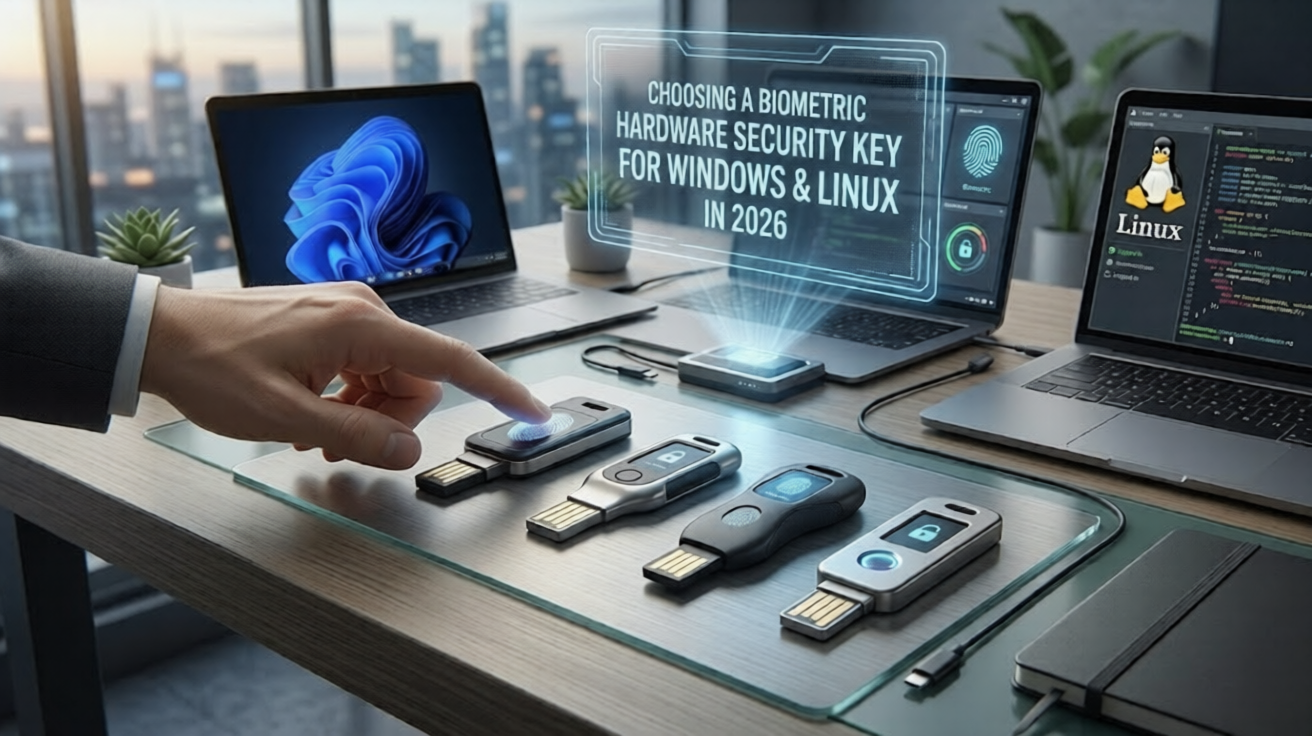
Why this matters today
At the time of writing, it is Thursday, 28 May 2026. That date is not a throwaway detail. By 2026, passwordless authentication has moved from a nice-to-have to a baseline expectation. Passkeys are now the default sign-in method on most major platforms, browsers ship native WebAuthn support out of the box, and a growing number of organizations enforce phishing-resistant multi-factor authentication as a hard policy rather than a recommendation.
In that environment, a single hardware key that can do everything (generate one-time passwords, act as a FIDO2 authenticator, behave as a smart card, and verify you with a fingerprint) is genuinely useful. It lets you carry one device instead of three, and it removes the most common weak point in any login flow: a memorized secret that can be phished, reused, or leaked.
This guide walks through how to evaluate these keys in a structured way, compares four representative models on the market in 2026, and shows a generic setup flow you can adapt. To keep things clean and reusable, everything below uses an example scenario rather than any real names, hosts, or credentials.
The example scenario
Meet a fictional developer named Robin, who works at an equally fictional company called Northwind Labs. Robin already owns one compact USB-C security key and uses it for web logins. Robin now wants a second key, ideally with a built-in fingerprint sensor, that can also:
-
Generate one-time passwords (OTP) for legacy services
-
Act as a FIDO2 and FIDO U2F authenticator for modern passwordless logins
-
Work as a smart card (the CCID interface) for certificate-based login
-
Unlock both a Windows workstation and a Linux laptop using a fingerprint
Robin's question is the one this article answers: which key actually does all of that, and how do you set it up safely.
Throughout the setup examples, the following placeholders are used. Replace them with your own real values.
-
Username:
robin -
Email:
[email protected] -
Windows workstation name:
dev-workstation -
Linux host name:
linux-laptop -
Internal domain:
corp.example.com
Step 1: Define your protocol requirements first
Before looking at any product, write down exactly which protocols you need. This single step eliminates most of the market and prevents an expensive mistake. There are four capabilities to consider.
- OTP (OATH TOTP/HOTP). Time-based or counter-based one-time passwords, useful for services that do not yet support FIDO.
- FIDO (U2F and FIDO2/WebAuthn). The modern, phishing-resistant standard behind passkeys.
- CCID (smart card). This is the interface that carries PIV and OpenPGP. PIV is what most operating systems use for certificate-based desktop login.
- Biometric (fingerprint). An on-device sensor that replaces the PIN, so verification happens on the key itself.
The trap here is that many keys advertise "biometric" but only support FIDO. They will unlock a passkey with your fingerprint, but they will not give you OTP or smart-card features. If you need all four, you must confirm all four explicitly.
Step 2: Confirm operating system support second
A key can support a protocol and still be awkward on your operating system. Check the login path for each platform separately.
-
Windows desktop login. Two routes exist. The smart-card route uses PIV through CCID and the Windows smart-card logon system. The biometric route uses the Windows Biometric Framework (WBF) or Windows Hello. Some keys support one, some support both.
-
Linux desktop login. Linux uses PAM modules. The smart-card route uses PIV with OpenSC and the
pam_pkcs11module. The FIDO route useslibpam-u2fwithpamu2fcfg. Both are well documented and work with any standards-compliant key.
This is also where you decide whether the fingerprint is the point of failure. On Linux, biometric local unlock is less polished than on Windows, so many people use the fingerprint for FIDO logins and a PIN-protected PIV certificate for the actual screen unlock.
Step 3: Check the connector and form factor third
A key you cannot plug in is useless. Match the connector to your hardware.
-
USB-A is still common on desktops and docks.
-
USB-C matches most modern laptops and phones.
-
A few keys offer both ports on one body, which is the most flexible option if you move between machines.
If you already own one key, picking a second key with the same connector simplifies your life. Picking the opposite connector gives you broader coverage. There is no wrong answer here, only a trade-off.
Step 4: Verify certification and trustworthiness fourth
For something that guards every login, provenance matters.
-
FIDO certification level tells you the key passed the FIDO Alliance's interoperability and security testing.
-
FIPS 140-2 or 140-3 certification matters if you work in a regulated environment.
-
Open-source firmware and an independent audit let third parties verify that the key does what it claims. Not every vendor offers this, and it is a meaningful differentiator.
Step 5: Decide the purchase model and budget fifth
Most keys are a one-time purchase. A few are sold only through a subscription or enterprise service program, which can be a deal-breaker for an individual buyer. Confirm whether you are buying a device outright or signing up for an ongoing service before you commit.
Step 6: Always plan for a backup key sixth
This step is non-negotiable. A hardware key can be lost, damaged, or left in another machine. If it is your only authentication factor and it disappears, you can be permanently locked out of your own accounts. Buy at least two keys, enroll both everywhere, and store the backup somewhere safe. Treat the second key as part of the cost of the first.
The 2026 comparison
The four keys below represent the main categories on the market: a Windows-focused fingerprint reader, a full multi-protocol biometric key, a value-focused open-source key, and a premium multi-protocol key from a well-known brand. Values are written as plain text so the table stays readable everywhere.
| Capability | Brand A VeriMark IT (fingerprint reader) | Brand B BioPass FIDO2 Pro | Brand C PIN+ Bio3 | Brand D Bio Multi-protocol |
|---|---|---|---|---|
| Fingerprint | Yes | Yes | Yes | Yes |
| FIDO2 / WebAuthn | Yes | Yes | Yes | Yes |
| FIDO U2F | Limited | Yes | Yes | Yes |
| OTP (TOTP) | No | Yes | Yes | No |
| OTP (HOTP) | No | Yes | No | No |
| PIV (smart card / CCID) | No | Yes | No | Yes |
| OpenPGP (CCID) | No | Not listed | Yes | No |
| Connector | USB-A | USB-C or USB-A | USB-A and USB-C | USB-A or USB-C |
| Windows login | Windows Hello focus | WBF plus PIV | FIDO2 passwordless | PIV smart-card |
| Linux support | Not really | Yes | Yes | Yes |
| Purchase model | One-time | One-time | One-time | Subscription only |
| Meets all four needs | No | Yes | Partial | No |
The short read: only one of these four covers fingerprint, OTP, FIDO, and CCID in a single one-time purchase that also works on both Windows and Linux. The value-focused key gets close but skips PIV and HOTP. The two well-known biometric keys each miss at least one requirement, usually OTP or smart-card support.
The brand names above are deliberately generic. Map them to the real products you are evaluating once you have confirmed each capability on the manufacturer's own specification page, because product lines change and a "Plus" or "Pro" suffix often marks the difference between a FIDO-only model and a full multi-protocol one.
A generic setup flow
The exact commands vary by vendor, but the order of operations is almost always the same. Here is the safe sequence using the example placeholders from earlier.
First, set a PIN on the key. Every biometric key still needs a PIN as a fallback. Set it before enrolling fingerprints.
Second, enroll your fingerprints. Use the vendor's enrollment tool. Enroll at least two fingers in case one is injured or unreadable.
Third, register the key for FIDO logins. In your account security settings, add the key as a passkey or security key. Repeat for your backup key.
Fourth, configure the operating system.
On Windows, for the smart-card route you would import or generate a PIV certificate on the key, then enable smart-card logon for the corp.example.com domain account. For the biometric route you would add the key under Windows Hello.
On Linux, a typical FIDO setup looks like this:
# Install the PAM module for FIDO U2F
sudo apt install libpam-u2f

# Generate the mapping for user robin on linux-laptop
mkdir -p ~/.config/Yubico
pamu2fcfg > ~/.config/Yubico/u2f_keys

# Touch the key (or present your fingerprint) when it blinks,
# then add the backup key with -n appended to the same file
pamu2fcfg -n >> ~/.config/Yubico/u2f_keys
For the smart-card route on Linux you would instead install OpenSC and pam_pkcs11, then map the certificate on the key to the robin account.
Fifth, test before you rely on it. Open a second terminal or a separate login session and confirm the key works before you log out of your active session. Never close your only working session until you have proven the new method works.
One note about production servers
You will notice this guide is about unlocking a personal workstation and laptop, not a production server. That distinction is deliberate and important.
On a production server, biometric local unlock is generally the wrong tool, and here is why it is required to think differently. Servers are accessed remotely and run headless, so there is no physical sensor for a fingerprint to reach, and a key plugged into a remote machine cannot be touched by you. For servers, the appropriate pattern is certificate-based or FIDO-backed SSH with centralized access control and audit logging, not a fingerprint on a key sitting in a drawer. Use biometrics where a human is physically present at the device, and use centrally managed credentials where they are not.
Conclusion
If you need a single key that does fingerprint, OTP, FIDO, and CCID and works on both Windows and Linux, a full multi-protocol biometric key (the Brand B category above) is the only option that checks every box in one one-time purchase. If you can live without PIV and HOTP, a value-focused open-source key is an excellent and much cheaper alternative. The well-known biometric keys from the largest brands are well built, but in 2026 they still split their features across product lines, so read the specification sheet carefully before you buy.
Merits
-
One device replaces several, reducing what you carry and manage.
-
The fingerprint stays on the key and is never uploaded, which protects your biometric data.
-
Phishing-resistant FIDO logins remove the most commonly exploited weakness, the reusable password.
-
Hardware keys keep working with no battery and no network connection.
Demerits
-
A lost key with no backup can lock you out permanently.
-
Linux biometric desktop unlock is still less polished than on Windows.
-
Multi-protocol keys cost more, and capability often hides behind a model suffix.
-
Some keys are subscription-only, which does not suit individual buyers.
Caution
Everything in this guide is provided for general educational purposes. Authentication changes can lock you out of accounts and machines if done incorrectly. Always enroll a backup key, keep a tested recovery method, and verify each new login method in a separate session before you depend on it. Proceed at your own risk, and never make authentication changes on a system you cannot afford to be locked out of.
-
What is the best biometric security key for Windows and Linux in 2026?
-
Can a single security key support OTP, FIDO2, and smart card at the same time?
-
Does every fingerprint security key support one-time passwords?
-
What is the difference between FIDO2 and PIV on a hardware key?
-
How do I unlock a Linux laptop with a fingerprint security key?
-
Which security keys work without a subscription?
-
Is an open-source security key safe to use?
-
How many backup security keys should I own?
-
What is CCID on a security key and why does it matter?
-
How do I set up a security key for Windows Hello and smart-card login?
#Cybersecurity #FIDO2 #HardwareSecurityKey #Passwordless #Passkeys #BiometricAuthentication #Linux #Windows #TwoFactorAuthentication #DevSecOps #InfoSec #SmartCard #PIV #ZeroTrust #IdentityManagement
Medium allows a limited number of tags per story, so choose the five most relevant from the list above.
Linux Server Hardening Checklist
30 practical steps to take a fresh Linux box from default to defensible. Enter your email — you'll get the PDF instantly, plus new posts on Linux, security & AI.
Free. No spam — unsubscribe in one click.
Responses
Sign in to leave a response.