
🎧 Listen to this article: हिंदी · English · தமிழ் · తెలుగు · ಕನ್ನಡ · മലയാളം · ଓଡ଼ିଆ · 日本語 · 中文
🌍 Read this in your language: हिंदी · தமிழ் · తెలుగు · ಕನ್ನಡ · മലയാളം · ଓଡ଼ିଆ · 日本語 · 中文
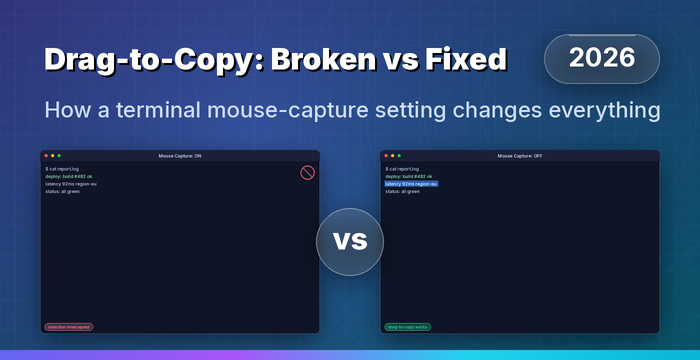
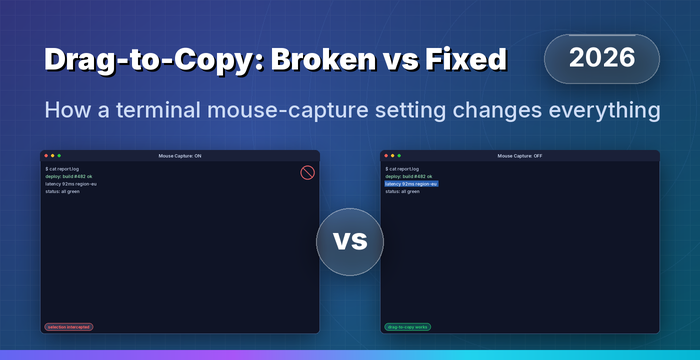
A field note on terminal mouse capture, why a routine tool update can quietly break copy-paste, and the one-line fix that gives your terminal back.
Why the date matters
This was written on Monday, June 8, 2026, and the date is not just a timestamp.
In 2026, command-line developer tools, and AI coding assistants in particular, ship updates on a weekly or near-daily cadence. Many of them auto-update in the background. That speed is mostly a gift: bug fixes land fast, and useful features arrive without you lifting a finger. The cost is that a single routine update can silently change how your terminal behaves, sometimes in ways that have nothing to do with the feature the release notes are advertising.
Recording the exact date and the exact version you were on is the single most useful habit when something "just stops working." It lets you line up the moment behavior changed against a specific release, search the right changelog, and confirm whether you found the cause or just a coincidence. If you take one thing from this post, take that.
The scenario
To keep this general, here is an aliased example rather than any one real setup.
Meet a developer we will call Alex, working on a machine we will call dev-laptop. Alex has a habit shared by millions of engineers: open a terminal, run a command, then drag the mouse across the output to highlight a few lines and copy them somewhere useful, a chat message, a ticket, a scratch file.
One morning that habit breaks. Alex runs a build inside a CLI tool we will call CodeForge CLI, tries to drag-select the last few log lines, and nothing highlights. The cursor moves, the click registers somewhere inside the program, but the text never selects. Copy-paste, a reflex Alex has not consciously thought about in years, is suddenly gone.
Nothing changed on the machine. No terminal emulator was reinstalled, no shell config was touched, no terminal multiplexer setting was flipped. The only thing that moved was the tool itself, which had quietly updated to a new version overnight.
Bottom line of the scenario: it was a CodeForge CLI update (an example version,
v2.1.150) that turned on mouse capture by default. It was not the terminal emulator, not a multiplexer, and not the machine.
The rest of this post explains what "mouse capture" actually is, and walks through the fix in order.
Why this happens: mouse capture, explained
Your terminal emulator normally owns the mouse. When you drag across text, the emulator highlights it and lets you copy it. That is "native selection," and it is a feature of the terminal window, not of whatever program is running inside it.
Many modern command-line programs, full-screen text user interfaces (TUIs), editors, pagers, and interactive AI coding tools, can ask the terminal to hand the mouse over to them instead. They do this by emitting small control sequences, historically called mouse tracking or mouse reporting modes. Once a program turns reporting on, your clicks and drags are delivered to the program as events (so it can support clickable buttons, scrollable panes, and selectable list items), and the terminal stops doing its own text selection.
That trade is often deliberate and useful. The downside is that when a tool enables mouse reporting by default, the behavior you relied on, plain drag-to-copy, appears to vanish, even though nothing is actually broken. The mouse is simply being captured by the foreground program.
A few facts worth keeping in your head:
-
This is a client-side, interactive-terminal behavior. It is about how a program talks to the terminal in front of you, not about any server.
-
It is almost always toggleable. Tools that capture the mouse usually provide a setting or environment variable to turn it off.
-
Holding a modifier key while you drag often bypasses capture entirely, which is the fastest emergency workaround.
The fix, in order
Work through these in sequence. The early steps confirm the cause and get you copying again immediately; the later steps make the fix permanent.
Step 1: Confirm the cause before changing anything
Resist the urge to start editing config files. First, prove that a tool update is responsible.
- Note today's date and the current version of the tool:
- Compare it against the version you remember working, and skim the changelog between the two for anything mentioning mouse, mouse capture, mouse reporting, or mouse tracking.
- Sanity-check that the problem is tied to the tool by trying to select text in the same terminal when the tool is not running (for example, at a plain shell prompt). If selection works there but not inside the tool, the tool is capturing the mouse, and you are in the right place.
Step 2: Get copying again right now (zero-config workaround)
Before any permanent change, you can usually reclaim selection on demand:
- Hold a modifier key while you drag. In most terminal emulators, holding Shift during a click-drag forces native selection and overrides the program's mouse capture. (Some emulators use a different key; check your emulator's docs if Shift does not work.)
This costs nothing, needs no restart, and is the right tool when you only need to grab text occasionally.
Step 3: Disable mouse capture permanently
If you would rather have plain drag-to-copy back as the default, turn the tool's mouse capture off. Most tools expose this in one of two ways. Use whichever your tool documents.
Option A: An environment variable. This is the example pattern; the real variable name depends on your specific tool, so confirm it in the tool's documentation or with codeforge --help.
# Example only. Replace with your tool's documented variable name.
export CODEFORGE_DISABLE_MOUSE=1
To make it permanent for your shell, add that line to your shell startup file (for example ~/.bashrc for Bash or ~/.zshrc for Zsh), then reload it:
echo 'export CODEFORGE_DISABLE_MOUSE=1' >> ~/.bashrc
source ~/.bashrc
Option B: A settings file. Many tools keep a JSON or similar config. Using a generic example path and an invented key:
// ~/.codeforge/settings.json  (example path and key names)
{
  "disableMouse": true
}
Set whichever mechanism your tool supports. You do not need both.
Step 4: Restart the tool and verify
Mouse-reporting state is established when the program starts, so the change will not take effect mid-session.
- Fully quit the tool (do not just hide the window).
- Start it again.
- Run any command that produces a few lines of output and try a plain drag-select.
If text highlights normally, you are done.
Step 5: Check your terminal multiplexer (only if you use one)
If you run inside a multiplexer such as tmux or screen, it has its own mouse mode that sits between the terminal and the tool, and it can produce the same symptom independently. If selection is still odd after Step 4 and you use tmux, you can disable its mouse mode:
# In tmux: turn its own mouse handling off
tmux set -g mouse off
Add set -g mouse off to your ~/.tmux.conf to make it stick. Skip this step entirely if you are not using a multiplexer.
One clarifying note
This is a local, interactive-terminal setting. It changes how a program behaves in the terminal session in front of you. It is not a server-side change, and there is no reason to apply it to a production server, scripts running in CI, or any non-interactive environment, because those have no human dragging a mouse to begin with. Keep the change where it belongs: your own development environment.
Merits and demerits of disabling mouse capture
| Merits | Demerits |
|---|---|
| Plain drag-to-copy works again across the whole session, exactly as before. | You lose the tool's in-app mouse features, such as clickable buttons, scroll-to-navigate, and click-to-select list items. |
| One predictable behavior; no need to remember a modifier key. | Keyboard-only navigation becomes mandatory for some tools, which has a small learning curve. |
| Works consistently across most terminal emulators. | A future update may reintroduce or rename the setting, so the fix can need revisiting. |
| Easy to reverse: unset the variable or set the config back to false. | If you use the in-app mouse features heavily, the trade may not be worth it for you. |
There is no universally correct choice here. If you live in the tool's interactive panes, keep capture on and use the Shift-drag workaround when you need to copy. If you mostly read output and copy text, disabling capture is usually the calmer default.
Caution: do this at your own risk
Everything above modifies your own environment, and you are responsible for the changes you make.
-
Back up config files before editing them. Copy
~/.bashrc,~/.zshrc,~/.tmux.conf, or any tool settings file to a safe name first, for examplecp ~/.bashrc ~/.bashrc.bak. -
Verify variable and key names against the official docs for your specific tool and version. The names in this post are illustrative examples, not literal values for any one product.
-
Change one thing at a time and re-test, so you always know which change had which effect.
-
Treat any command you copy from the internet, including from this post, as something to read and understand before you run it.
If you are unsure, the Shift-drag workaround in Step 2 changes nothing permanently and is always a safe place to start.
Conclusion
When drag-to-copy disappears in your terminal, the instinct is to blame the terminal emulator, the multiplexer, or the machine. In a fast-moving 2026 toolchain, the more likely culprit is the program that updated itself last night and switched mouse capture on by default. The behavior is not broken; the mouse is simply being captured.
The path back is short and predictable: confirm the cause by checking the version and changelog, reclaim selection immediately with a modifier-key drag, then disable mouse capture through the tool's documented environment variable or settings file, restart, and verify. Note the date and version while you are at it, so the next surprise update is a five-minute diagnosis instead of a lost afternoon.
-
Why did drag-to-copy stop working in my terminal after a CLI tool update?
-
What is terminal mouse capture, and why does it break text selection?
-
How do I disable mouse capture or mouse reporting in a command-line tool?
-
How can I copy text from a TUI app without disabling its mouse features?
-
Does holding Shift fix terminal copy-paste when a program captures the mouse?
-
How do I turn off tmux mouse mode to restore native text selection?
-
Which environment variable disables mouse in a terminal AI coding tool?
-
How do I find out which version of a CLI tool introduced a behavior change?
-
Is mouse capture a terminal emulator setting or an application setting?
-
How do I restore default copy-paste in the terminal after an update on macOS or Linux?
#Terminal #CommandLine #CLI #DeveloperTools #DevTools #Productivity #macOS #Linux #tmux #CopyPaste #MouseCapture #MouseReporting #TUI #ShellTips #SoftwareEngineering #DeveloperWorkflow #Coding #Programming #TechTips #AItools
API Security Testing Checklist
A practical workflow for testing authentication, authorization, input handling, business logic, and evidence without losing track of scope.
Free. No spam — unsubscribe in one click.
Responses
Sign in to leave a response.